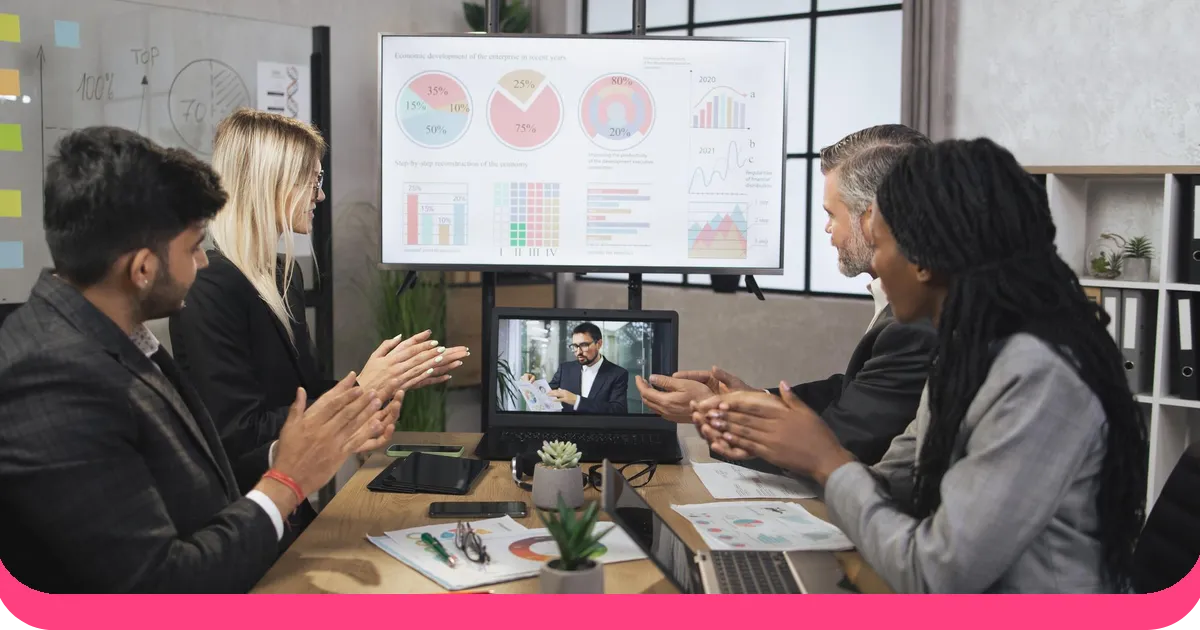


רוב המצגות נעות בכיוון אחד. אתה מדבר. הם מקשיבים. בשלב מסוים תשומת הלב שלהם נודדת, הטלפון שלהם מופיע, והפגישה ממשיכה בלעדיהם. ענני מילים הם אחת הדרכים הפשוטות ביותר להפוך את הדינמיקה הזו, והם עושים זאת בערך בשישים שניות.
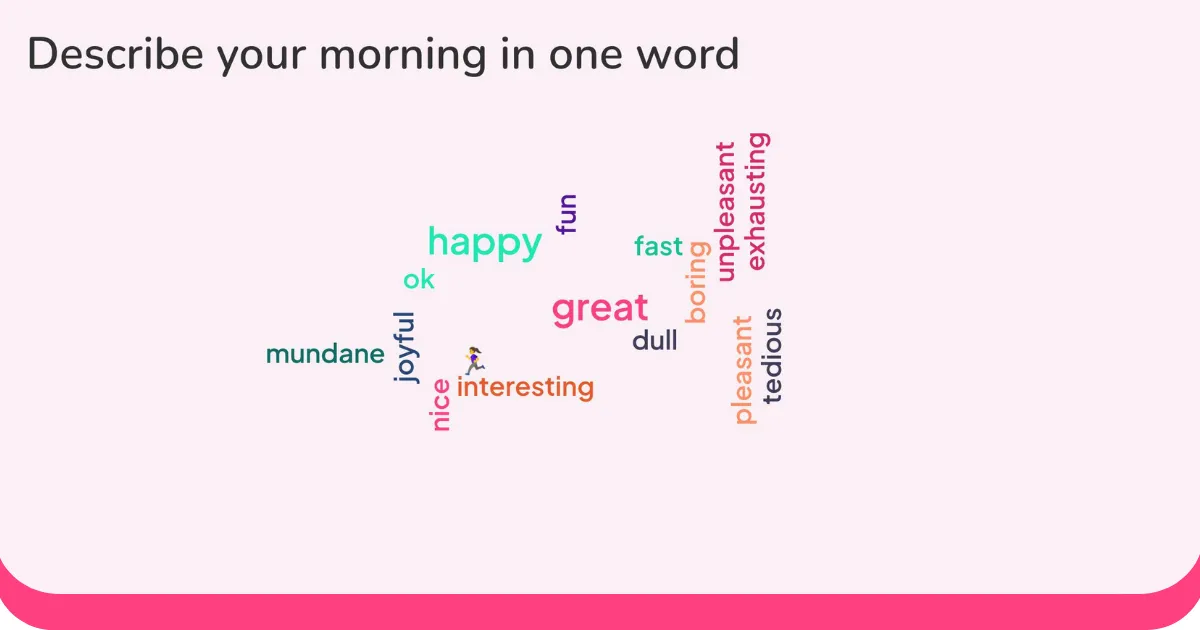
המכניקה פשוטה: אתם שואלים את הקהל שלכם שאלה, הם עונים במילים בודדות או בביטויים קצרים, והתשובות שלהם מופיעות על המסך בגודל לפי תדירות. התשובות הנפוצות ביותר נראות גדולות ביותר. החדר צופה בהן נצברות בזמן אמת. בפרק זמן של שקופית אחת, כל אדם בחדר תרם משהו ויכול לראות כיצד התגובה שלו משתווה לתגובת כולם.
המעבר הזה מפסיבי לאקטיבי משנה את האופן שבו שאר המצגת מגיעה. אנשים שהשתתפו נוכחים יותר מאנשים שרק צפו. ענני מילים הם דרך קלה ליצירת השתתפות זו בכל נקודה בפגישה, והם עובדים בין אם אתם מלמדים שיעור, מפעילים הדרכה, מנחים סדנה או מציגים בפני צוות הנהלה.
מדריך זה דן מדוע ענני מילים עובדים, מתי להשתמש בהם וכיצד להוסיף אותם למצגת פאוורפוינט.
למה ענני מילים עובדים
הערך של ענן מילים אינו החזותי. אלא פעולת התרומה אליו.
כששואלים קהל שאלה ומציגים את תשובותיו על המסך, שני דברים קורים בו זמנית. ראשית, אנשים מרגישים שהם נשמעים: התשובה שלהם נראית לעין, בגודל של מספר האנשים שהסכימו. שנית, אנשים הופכים לסקרנים: הם רוצים לראות מה כולם אמרו ואיך התגובות שלהם משתוות. שני הדברים האלה מייצרים תשומת לב, וזה הדבר שעליו מצגות נלחמות כל הזמן.
ענני מילים גם מספקים לכם מידע אמיתי. בדיקת הבנת הנאמר באמצע המצגת אומרת לכם האם החדר הבין את החלק האחרון לפני שאתם ממשיכים עליו. שאלת פתיחה ששואלת איך אנשים מרגישים אומרת לכם האם אתם מתחילים עם חדר מעורב או מוסח. שאלת סיום על נקודות מבט אומרת לכם מה באמת הגיע לעומת מה שחשבתם שנכנס. לולאת המשוב הזו זמינה בזמן אמת, מה שאומר שאתם יכולים לפעול על פיה במקום לגלות אותה בסקר לאחר המצגת שאף אחד לא קורא.
כיצד להוסיף ענן מילים ל-PowerPoint
הדרך המעשית ביותר להוסיף ענן מילים חי למצגת PowerPoint היא באמצעות תוסף שמטפל בשכבת השתתפות הקהל. ל-AhaSlides יש תוסף PowerPoint חינמי שעושה זאת מבלי לדרוש מהקהל להוריד דבר. הם מצטרפים באמצעות קוד QR או קישור קצר, שולחים את תגובתם בטלפון שלהם, וענן המילים מתעדכן בשקופית בזמן אמת.
כך מגדירים זאת.
תחילת עבודה
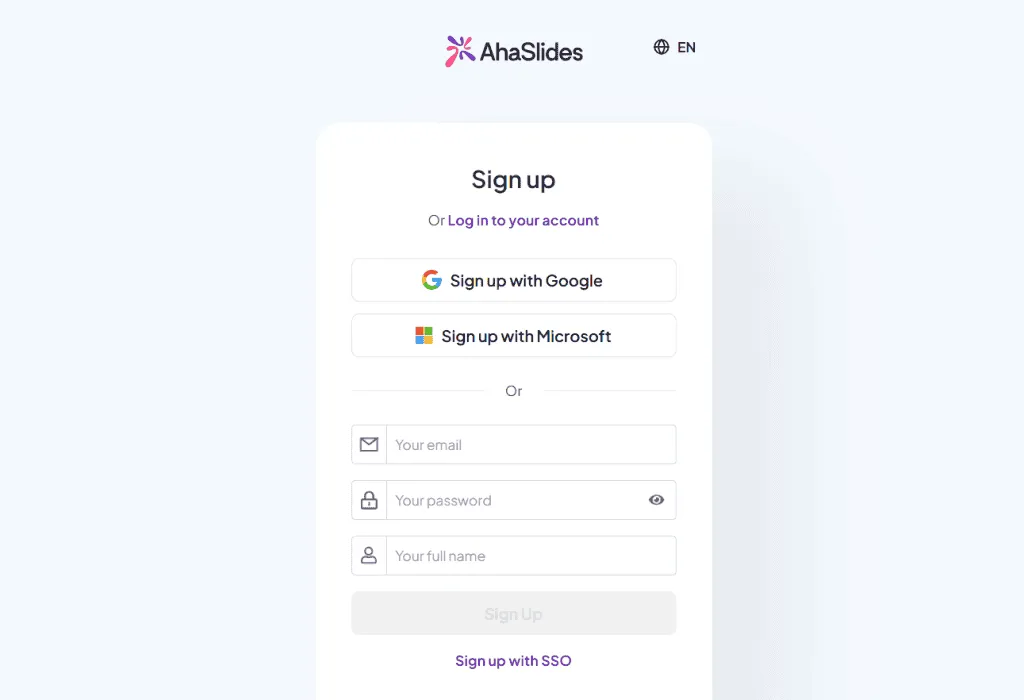
צור חשבון AhaSlides בחינם באתר ahaslides.com . הרמה החינמית תומכת בעד חמישים משתתפים, מה שמכסה את רוב סביבות הכיתה והפגישות. ההרשמה אורכת כשתי דקות.
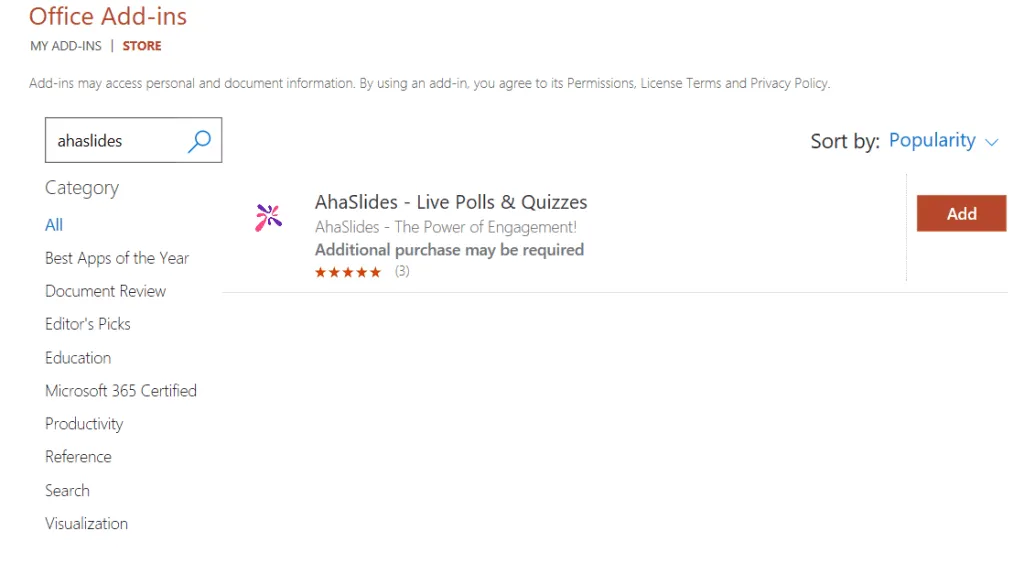
ב-PowerPoint, עבור אל הכרטיסייה הוספה ולחץ על קבל תוספים. חפש את AhaSlides בחנות Microsoft, לחץ על הוסף ואשר את השילוב. כפתור מופיע ברצועת הכלים של PowerPoint. זוהי התקנה חד פעמית שנשארת במקומה עבור כל המצגות העתידיות.
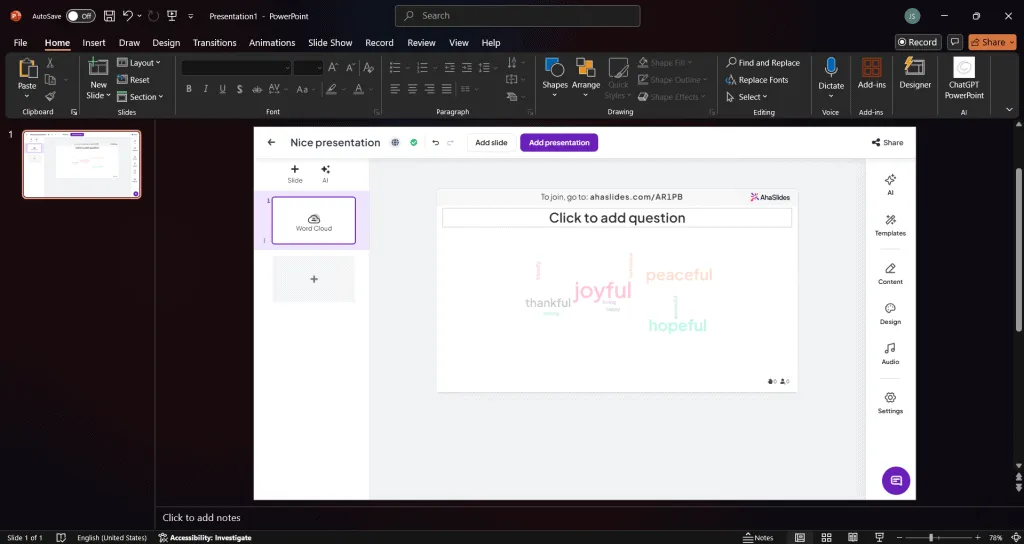
הוספת ענן המילים לשקופית שלך
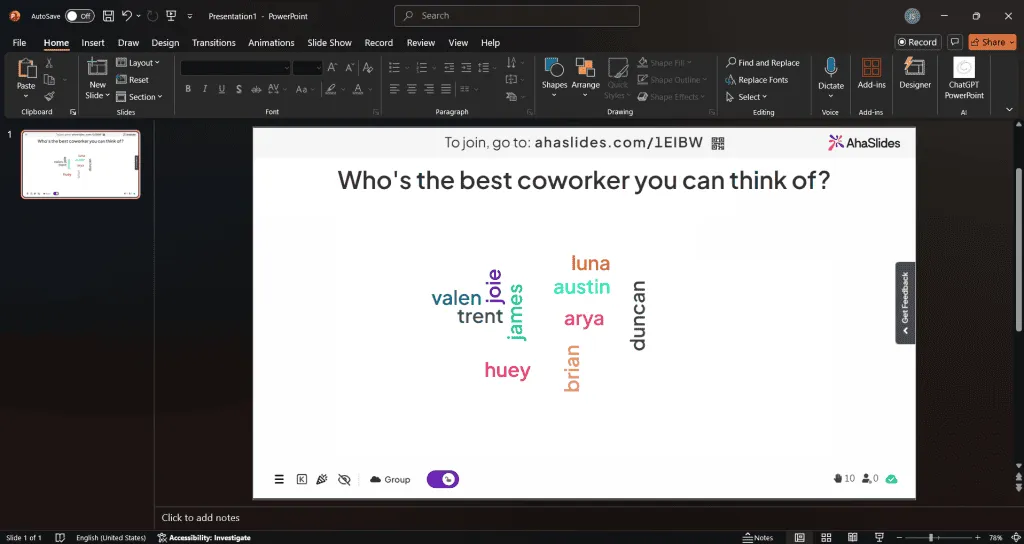
פתחו את המצגת שלכם ונווטו לשקופית שבה ברצונכם שענן המילים יופיע. לחצו על כפתור AhaSlides ברצועת הכלים ובחרו "ענן מילים" מהתפריט. מופיע מציין מיקום בשקופית שתוכלו לשנות את גודלו ולמקמו כמו כל רכיב אחר.
הגדרת אותו
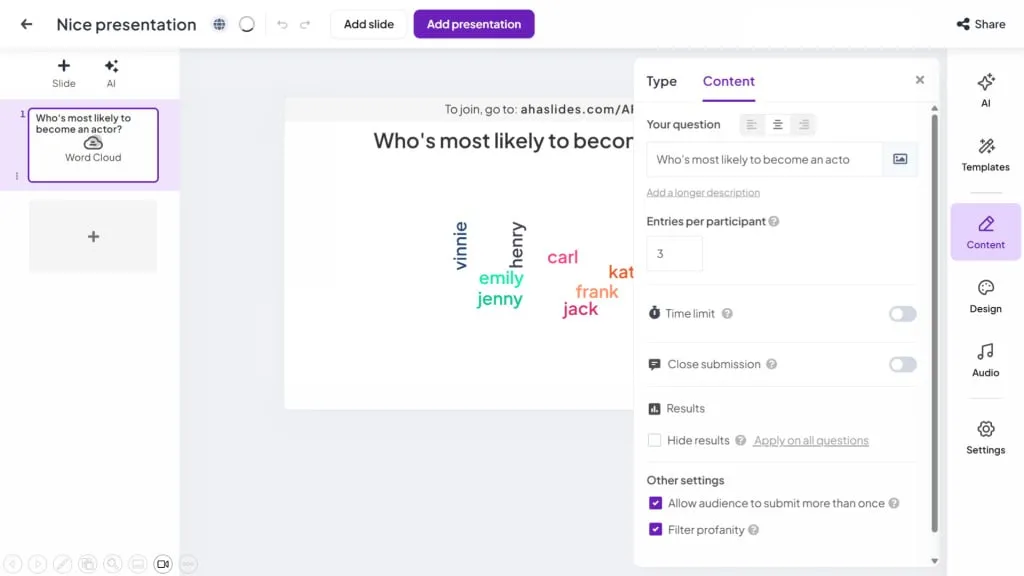
לחץ על מציין המיקום כדי לגשת להגדרות. החשובה ביותר היא ההנחיה: השאלה שהקהל שלך יענה עליה. הנחיה מעורפלת מייצרת תגובות מעורפלות. הנחיה ספציפית מייצרת תגובות שימושיות. "מה הדאגה הגדולה ביותר שלך לגבי שינוי זה?" עובד טוב יותר מ"שתף את מחשבותיך". "איזו מילה אחת מתארת איך אתה מרגיש עכשיו?" עובדת טוב יותר מ"מה שלומך?"
הגדרות נוספות שכדאי לשקול: סינון קללות, שכדאי להפעיל עבור הגדרות כיתה; רשומות לכל משתתף, כאשר הגבלה למילה אחת לאדם נוטה לייצר תגובות מגוונות יותר מיותר אנשים; והאם להסתיר תוצאות במהלך ההגשה, מה שמונע מתגובות מוקדמות להשפיע על תשובות מאוחרות יותר. כל השאר יכול להישאר בברירת המחדל.
הפעלת זה במהלך המצגת שלך
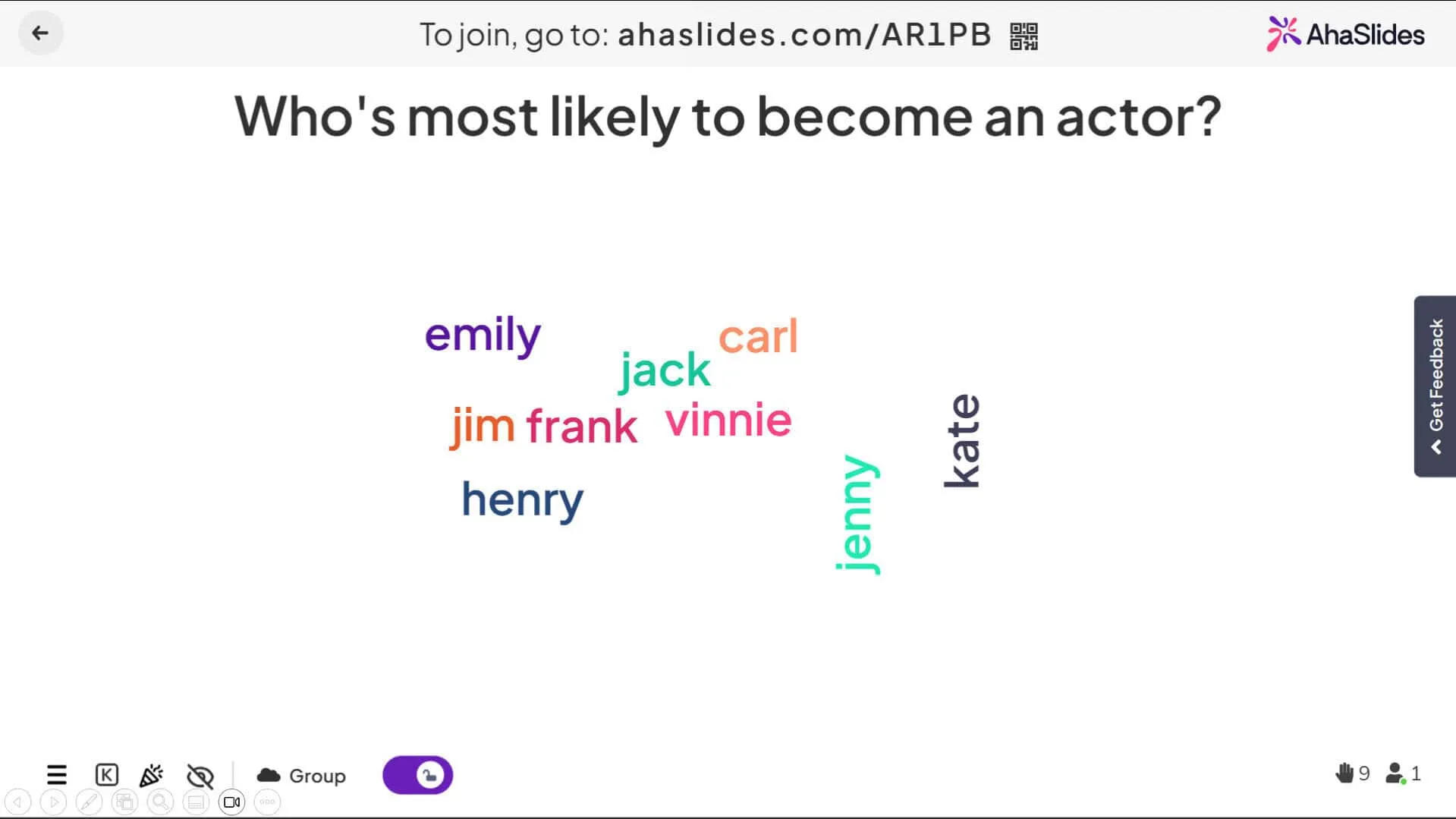
כשתגיעו לשקופית ענן המילים, לחצו על כפתור AhaSlides. קוד הצטרפות וקוד QR יופיעו בשקופית. אמרו לקהל שלכם: "סרקו את הקוד או גשו לאתר ahaslides.com והזינו את הקוד הזה, לאחר מכן הקלידו את תשובתכם."
תגובות מופיעות מיד כשהן מגיעות. תנו לזה שלושים עד שישים שניות: מספיק זמן כדי שרוב האנשים יוכלו להגיב, וקצר מספיק כדי לשמור על המומנטום. כשתהיו מוכנים לסגור אותו, לחצו על "עצור תגובות". ענן המילים מסתיים ותוכלו לדון במה שאתם רואים לפני שתמשיכו הלאה.
הערה מעשית אחת: ענני מילים דורשים חיבור לאינטרנט כדי לאסוף תשובות. בדקו את ה-WiFi של המקום לפני שאתם מציגים, והכינו נקודת גישה ניידת כגיבוי אם החיבור אינו אמין.
מתי להשתמש בענן מילים
ענני מילים יעילים ביותר כשיש לכם שאלה אמיתית ואתם באמת רוצים לדעת את התשובה. בשימוש כזה, הם יוצרים רגע של השתתפות אמיתית. בשימוש כמילוי או כדי להדביק קטע, הם מרגישים כמו מה שהם.
הנה חמישה מצבים שבהם הם עובדים היטב באופן עקבי.
פתיחת מושב
התחלה עם "במילה אחת, איך אתה מרגיש היום?" אורכת תשעים שניות ומשנה את האנרגיה בחדר. אתה מגלה מיד מי לחוץ, מוסח או מנותק עוד לפני שאתה מתחייב לסגנון הגשה שאינו מתאים לחדר. תלמידים שרואים את דבריהם על המסך מרגישים שהם נראים עוד לפני שהשיעור התחיל. צוותים שתורמים לפתיחה מגיעים לתוכן קצת יותר נוכח ממה שהיו עושים אחרת.
בדיקת הבנת הנקרא באמצע השיעור
לאחר הסבר מושג, השאלה "מהי הנקודה העיקרית שכבר כיסינו?" מראה לכם בזמן אמת האם החדר הבין לפני שאתם ממשיכים הלאה. אם התשובות מראות הבנה נכונה, אתם ממשיכים הלאה בביטחון. אם הן מראות בלבול או פרשנויות מגוונות מאוד, אתם יודעים להסביר שוב לפני שאתם ממשיכים. זה שימושי יותר משאלה "האם כולם מבינים?" שכמעט תמיד יוצרת שתיקה ללא קשר לכמות הבלבול בפועל.
איסוף דעות לפני הצגת דעות משלך
בפגישת הדרכה על תרבות או ערכים, שאילת "מהי התכונה שאתה מעריך ביותר בחבר צוות?" לפני שאתה מציג את התוכן שלך מראה מה החדר כבר חושב. אם התשובות תואמות את מה שאתה עומד לומר, אתה יכול להתייחס להתאמה הזו. אם הן מתפצלות, אתה יודע היכן החיכוך נמצא לפני שאתה נתקל בו. כך או כך, אתה עובד עם החדר ולא עליו.
לכידת רעיונות בסיעור מוחות
השאלה "מהו פתרון אחד לבעיה הזו?" מאפשרת לחדר של עשרים אנשים לייצר עשרים רעיונות בשישים שניות. ענן המילים מראה אילו הצעות עלו שוב ושוב, מה שמסמן את הרעיונות שהדהדו ברחבי הקבוצה ולא רק את הקול החזק ביותר בחדר. זוהי דרך מהירה להעלות את החשיבה הקולקטיבית לפני שמצטמצמים.
סוגרים עם צ'ק לקחת
סיום ב"מהו דבר אחד שאתה לוקח מהיום?" יגיד לך מה באמת הגיע, ולא מה התכוונת להגיע אליו. אולי השקעת את רוב זמנך בנתונים, אבל התגובות חוזרות שוב ושוב לסיפור אישי שסיפרת כבדרך אגב. זהו מידע שימושי בפעם הבאה שתציג את החומר הזה. זה גם נותן לקהל שלך רגע של התבוננות שמגבש את הלמידה שלהם לפני שהם עוזבים.
טיפים לקבלת תגובות טובות יותר
ההבדל בין ענן מילים שמייצר נתונים שימושיים לבין ענן שמייצר רעש נובע בדרך כלל מהשאלה. שאלה מעורפלת מקבלת תשובות מעורפלות. "שתף את מחשבותיך" לא אומר לקהל שלך דבר על סוג התגובה שאתה רוצה. "מה הדבר היחיד שהיית משנה בתהליך הזה?" אומר להם בדיוק על מה לחשוב ולאיזה כיוון.
שמרו על חלון תגובה קצר. שלושים עד שישים שניות בדרך כלל מספיקות. חלונות ארוכים יותר לא מניבים תגובות טובות יותר, הם מייצרים יותר זמן לאנשים לפקפק בעצמם או להסיח את דעתם. הדחיפות של חלון קצר נוטה להניב תשובות כנות ואינסטינקטיביות יותר מאשר חלון ארוך.
אל תסבירו יתר על המידה את המכניקה. הוראה אחת ברורה היא כל מה שהקהל שלכם צריך: "סרקו את הקוד, הקלידו מילה אחת, לחצו על שלח". כל דבר מעבר לכך מעביר את תשומת הלב מהשאלה לטכנולוגיה, שהיא ההפך ממה שאתם רוצים.
תמיד דנו בתוצאות לפני שתמשיכו הלאה. ענן המילים אינו סוף האינטראקציה, אלא תחילתה. הקדישו שלושים שניות לדבר על מה שאתם רואים. "שמתי לב שאמון עלה שוב ושוב. זה אומר לי משהו חשוב על מה שהצוות הזה מעריך." הכרה זו מראה לקהל שלכם שהתרומה שלהם הייתה חשובה, מה שגורם להם להיות נוטים יותר להשתתף בפעם הבאה שתשאלו.
השתמשו בענני מילים במשורה. שניים או שלושה בכל מצגת זה בדרך כלל הכמות הנכונה. הם יעילים בין היתר משום שהם בלתי צפויים. אם כל שקופית מבקשת תגובה, החידוש נעלם וכך גם עלייה חדה במעורבות שמגיעה איתה.
שאלות נפוצות
כמה שאלות מעשיות עולות באופן עקבי בנוגע לענני מילים במצגות.
שכבת AhaSlides החינמית תומכת בעד חמישים משתתפים, מה שמכסה את רוב סביבות הכיתה והפגישות. תוכניות בתשלום תומכות בקהלים גדולים יותר אם אתם זקוקים לכך.
אם חיבור האינטרנט שלכם נותק באמצע המצגת, ענן המילים מפסיק לאסוף תגובות. בדיקת ה-WiFi של המקום לפני שאתם מתחילים וגיבוי של נקודה חמה ניידת מבטלת את רוב הסיכון הזה. שווה בדיקה של שתי דקות.
ניתן לשמור ענני מילים. צלמו צילום מסך במהלך הקריאה או הורידו את התמונה לאחר מכן דרך AhaSlides. שתי האפשרויות פועלות אם תרצו תיעוד של התגובות.
מצגות היברידיות עובדות היטב עם ענני מילים. משתתפים פנים אל פנים ומרוחקים מגישים תשובות בו זמנית דרך אותו קישור, כך שהענן משקף קלט מכל הנוכחים בחדר ללא קשר למיקומם.
אם אתם מודאגים מהודעות לא הולמות, סינון קללות מזהה את רוב הבעיות באופן אוטומטי. עבור מקומות שבהם התנהגות היא דאגה אמיתית, אזכור בהתחלה שהתגובות גלויות לכולם נוטה להיות הנחיה מספקת לוויסות עצמי.
גלישה את
הקמת ענן מילים לוקחת כשתי דקות ושישים שניות להריץ. עבור השקעה זו, מקבלים חדר שמשתתף באופן פעיל במקום צופה פסיבי, נתונים בזמן אמת על מה שהקהל שלכם חושב ומבין, ורגע שאנשים נוטים לזכור אחרי שרוב השקופיות מטושטשות יחד.
הטכניקה עובדת משום שהיא באמת אינטראקטיבית ולא רק למראית עין. הקהל שלכם לא לוחץ על תרחיש מובנה מראש או צופה באנימציה. הם תורם משהו, רואה אותו משתקף בחזרה, וצופים בתגובה הקולקטיבית מתעצבת בזמן אמת. זוהי חוויה שונה ממצגת סטנדרטית, והיא משנה את האופן שבו שאר המושב מתפתח.
נסו זאת במצגת הבאה שלכם. התחילו עם ענן מילים אחד, שמוצב ברגע שבו אתם באמת רוצים לדעת מה הקהל שלכם חושב. שימו לב מה זה עושה לחדר.