


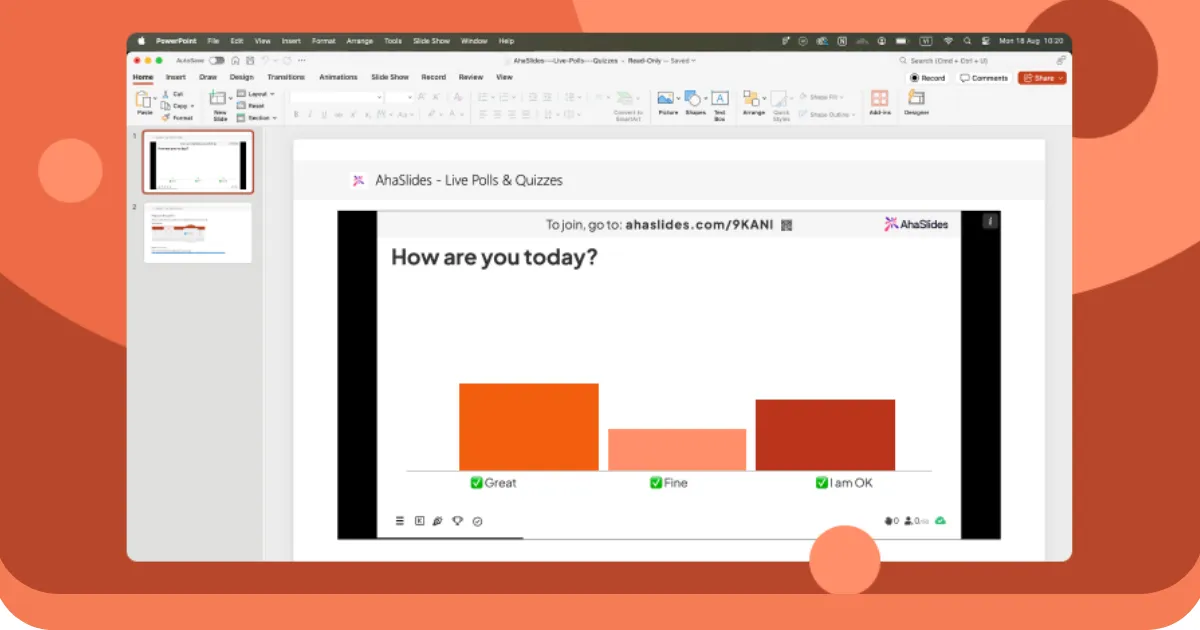
Коротка відповідь: щоб додати живу взаємодію з аудиторією до існуючої презентації PowerPoint, використовуйте надбудову, яка працює всередині PowerPoint: ClassPoint, Slido, Mentimeter, Poll Everywhere або Vevox. Щоб створити повністю інтерактивну презентацію з нуля, використовуйте AhaSlides, Mentimeter, Genially або Nearpod. Щоб перетворити презентацію на інтерактивний модуль електронного навчання, використовуйте iSpring Suite або Articulate 360. Це три різні завдання, і інструменти не є взаємозамінними.
Більшість статей на цю тему змішують усі три категорії в один рейтинговий список, тому люди встановлюють неправильні речі. Нижче вони розділені.
Ми створюємо AhaSlides, який належить до другої категорії. Якщо поведінка інструменту залежить від вашої версії PowerPoint або ліцензії, ми про це зазначаємо, а не замовчуємо.
Презентація PowerPoint, яка містить додаткові інтерактивні елементи, може забезпечити залученість аудиторії до 92%. Чому?
Поглянь:
Не витрачайте більше часу та одразу переходьте до нашого вичерпного посібника зі створення інтерактивної презентації PowerPoint за допомогою двох простих та унікальних методів, а також безкоштовних шаблонів, щоб створити шедевр.
Спосіб 1: Інтерактивна участь аудиторії за допомогою надбудов
Інтерактивність на основі навігації покращує потік контенту, але не вирішує фундаментальну проблему живих презентацій: аудиторія пасивно сидить, поки одна людина говорить. Створення справжньої залученості під час живих сесій вимагає інших інструментів.
Чому участь аудиторії важливіша за вишукану навігацію
Різниця між інтерактивною навігацією та інтерактивною участю — це різниця між документальним фільмом Netflix та семінаром. Обидва можуть бути цінними, але вони служать зовсім різним цілям.
Завдяки інтерактивній навігації: ви все ще презентуєте людям. Вони дивляться, поки ви переглядаєте контент від їхнього імені. Це інтерактивно для вас як доповідача, але вони залишаються пасивними спостерігачами.
За допомогою інтерактивної участі: Ви працюєте РАЗОМ з людьми. Вони активно роблять свій внесок, їхній внесок відображається на екрані, і презентація перетворюється на розмову, а не на лекцію.
Дослідження постійно показують, що активна участь призводить до значно кращих результатів, ніж пасивний перегляд. Коли глядачі відповідають на запитання, діляться думками або надсилають запити зі своїх телефонів, одночасно відбувається кілька речей:
- Когнітивна залученість зростає. Обмірковування варіантів опитування або формулювання відповідей активує глибшу обробку, ніж пасивне отримання інформації.
- Психологічні інвестиції зростають. Після того, як люди беруть участь, вони більше дбають про результати та продовжують звертати увагу, щоб побачити результати та почути точки зору інших.
- Соціальний доказ стає видимим. Коли результати опитування показують, що 85% вашої аудиторії з чимось погоджується, цей консенсус сам по собі стає даними. Коли у вашому розділі запитань і відповідей з’являється 12 запитань, активність стає заразною, і більше людей беруть участь.
- Сором'язливі учасники знаходять голос. Інтроверти та молодші члени команди, які ніколи не піднімуть руки чи не висловляться, надсилатимуть запитання анонімно або голосуватимуть в опитуваннях, не виходячи з дому зі своїх телефонів.
Ця трансформація вимагає інструментів, що виходять за рамки вбудованих функцій PowerPoint, оскільки вам потрібні фактичні механізми збору та відображення відповідей. Кілька надбудов вирішують цю проблему.
Використання надбудови AhaSlides PowerPoint для участі аудиторії в прямому ефірі
AhaSlides пропонує безкоштовне доповнення PowerPoint , яке працює як на Mac, так і на Windows, пропонуючи 19 різних інтерактивних типів слайдів, включаючи вікторини, опитування, хмари слів, сесії запитань та відповідей та опитування.
Крок 1. Створіть обліковий запис AhaSlides
- Зареєструватися для безкоштовного облікового запису AhaSlides
- Створіть свої інтерактивні завдання (опитування, вікторини, хмари слів) заздалегідь
- Налаштуйте питання, відповіді та елементи дизайну
Крок 2: Встановіть надбудову AhaSlides у PowerPoint
- Відкрийте PowerPoint
- Перейдіть на вкладку «Вставка»
- Натисніть «Отримати надбудови» (або «Надбудови Office» на Mac)
- Пошук за запитом "AhaSlides"
- Натисніть кнопку «Додати», щоб встановити надбудову
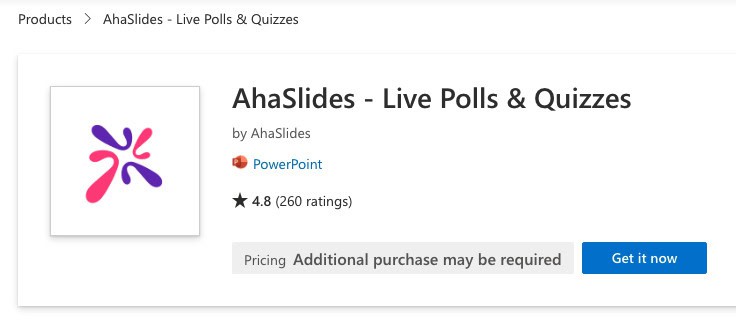
Крок 3: Вставте інтерактивні слайди у свою презентацію
- Створення нового слайда у презентації PowerPoint
- Перейдіть до розділу «Вставка» → «Мої надбудови»
- Виберіть AhaSlides зі списку встановлених надбудов
- Увійдіть до свого облікового запису AhaSlides
- Виберіть інтерактивний слайд, який ви хочете додати
- Натисніть кнопку «Додати слайд», щоб вставити його у свою презентацію
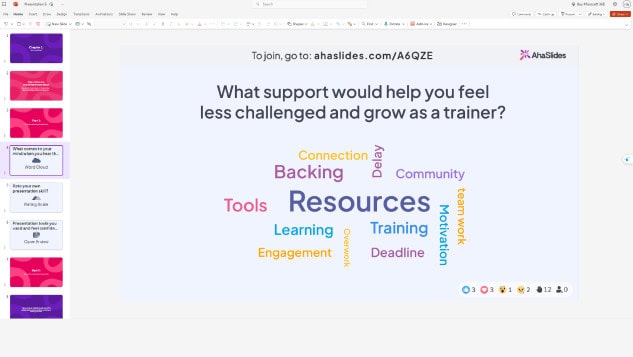
Під час вашої презентації на інтерактивних слайдах з’являтимуться QR-код та посилання для приєднання. Учасники сканують QR-код або переходять за посиланням на своїх смартфонах, щоб приєднатися та взяти участь у режимі реального часу.
Досі не розумієте? Дивіться цей детальний посібник у нашій Базі знань.
Порада експерта 1: Використовуйте криголам
Початок будь-якої презентації з короткої інтерактивної активності допомагає розтопити лід та задає позитивний, захопливий тон. Криголамні методи особливо добре підходять для:
- Семінари, де ви хочете оцінити настрій або енергію аудиторії
- Віртуальні зустрічі з віддаленими учасниками
- Тренувальні заняття з новими групами
- Корпоративні заходи, де люди можуть не знати одне одного
Приклади ідей для розмови про льодохід:
- «Як у всіх сьогодні самопочуття?» (опитування настрою)
- «Яким одним словом можна описати ваш поточний рівень енергії?» (хмара слів)
- «Оцініть свою обізнаність із сьогоднішньою темою» (запитання за шкалою)
- «Звідки ви приєднуєтеся?» (відкрите питання для віртуальних подій)
Ці прості дії одразу залучають вашу аудиторію та надають цінну інформацію про їхній ментальний стан, яку ви можете використовувати для коригування свого підходу до презентації.
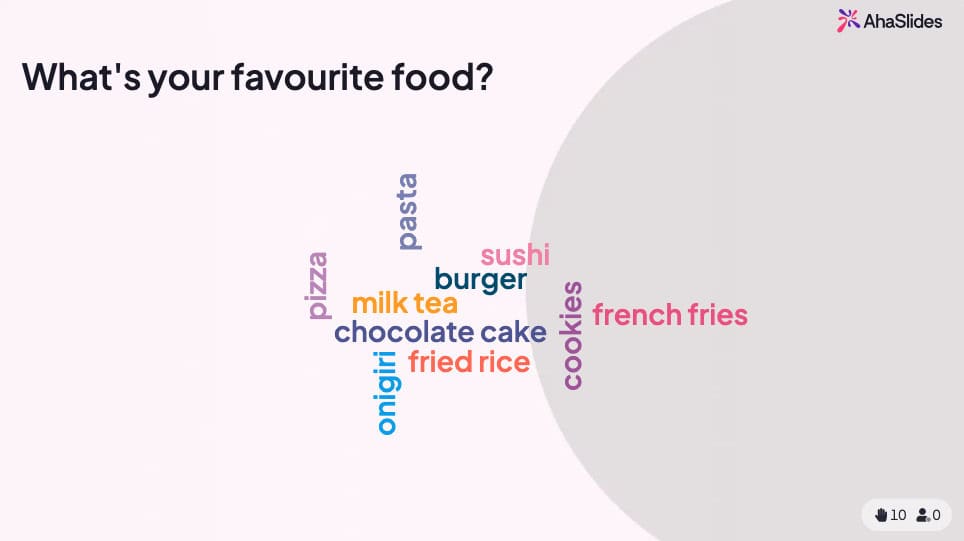
💡 Хочете більше ігор для розваги? Ви знайдете цілу купу безкоштовних прямо тут!
Порада експерта 2: Завершіть міні-вікториною
Тести призначені не лише для оцінювання — це потужні інструменти залучення, які перетворюють пасивне слухання на активне навчання. Стратегічне розміщення тестів допомагає:
- Підкресліть ключові моменти - Учасники краще запам'ятовують інформацію після тестування
- Визначте прогалини в знаннях - Результати в режимі реального часу показують, що потребує уточнення
- Підтримуйте увагу - Знання про наближення вікторини допомагає аудиторії зосередитися
- Створюйте незабутні моменти - Змагальні елементи додають азарту
Найкращі практики для розміщення вікторин:
- Додайте тести з 5-10 питань в кінці основних тем
- Використовуйте тести як переходи між розділами
- Включіть заключний тест, що охоплює всі основні моменти
- Відображайте таблиці лідерів для створення дружньої конкуренції
- Надайте негайний зворотний зв'язок щодо правильних відповідей
На AhaSlides вікторини безперебійно працюють у PowerPoint. Учасники змагаються за бали, швидко та правильно відповідаючи на своїх телефонах, а результати відображаються в режимі реального часу на вашому слайді.
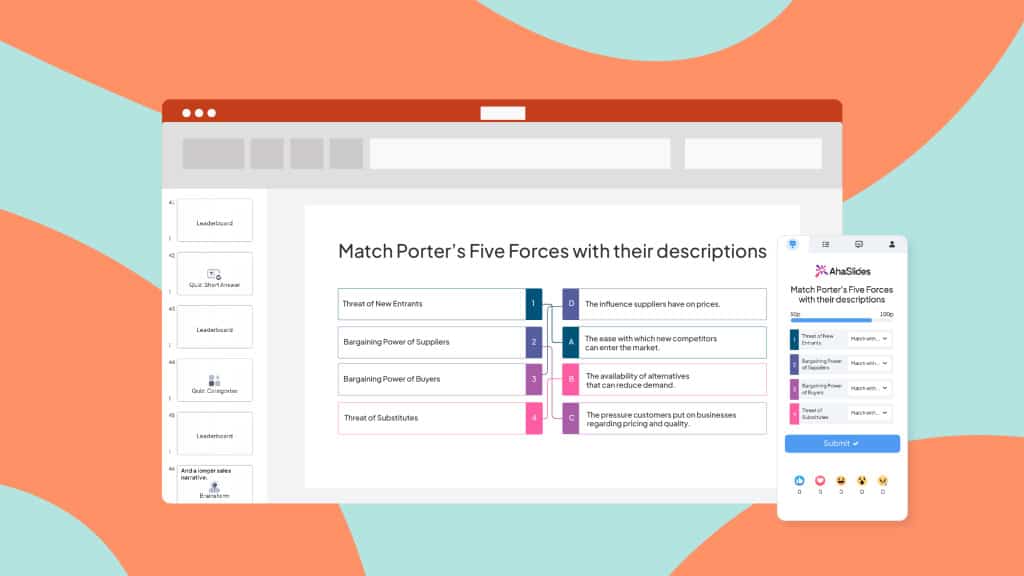
На AhaSlides вікторини працюють так само, як і інші інтерактивні слайди. Задайте запитання, і ваша аудиторія змагатиметься за бали, будучи найшвидшими відповідачами на своїх телефонах.
Порада експерта №3: Поєднуйте різні слайди
Різноманітність запобігає втомі від презентації та підтримує зацікавленість протягом триваліших сесій. Замість того, щоб використовувати один і той самий інтерактивний елемент багаторазово, поєднуйте різні типи:
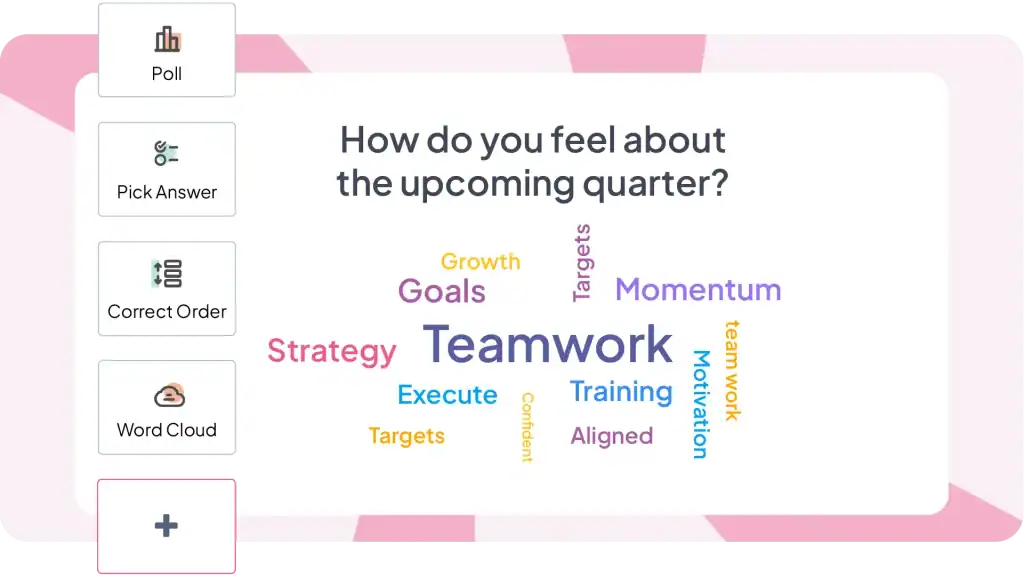
Доступні типи інтерактивних слайдів:
- опитування - Швидкий збір думок з кількома варіантами вибору
- Квізи - Перевірка знань з підрахунком балів та таблицями лідерів
- Хмари слів - Візуальне представлення відповідей аудиторії
- Питання відкритого типу - Відповіді у вільній текстовій формі
- Масштабні питання - Збір оцінок та відгуків
- Слайди для мозкового штурму - Спільне генерування ідей
- Запитання та відповіді - Анонімне подання запитання
- Спиннерні колеса - Випадковий вибір та гейміфікація
Рекомендований мікс для 30-хвилинної презентації:
- 1-2 заходи для розбудови льоду на початку
- 2-3 опитування для швидкої взаємодії
- 1-2 тести для перевірки знань
- 1 хмара слів для креативних відповідей
- 1 сесія питань та відповідей
- 1 фінальну вікторину або опитування на завершення
Така різноманітність зберігає динамічність вашої презентації та гарантує врахування різних стилів навчання та вподобань щодо участі.
Інші варіанти доповнень, які варто розглянути
AhaSlides – не єдиний варіант. Кілька інструментів виконують схожі функції з різним фокусом.
ClassPoint глибоко інтегрується з PowerPoint та включає інструменти для анотацій, швидкі опитування та функції гейміфікації. Особливо популярний в освітньому контексті. Більше розвинений для інструментів під час презентації, менш розвинений для планування перед презентацією.
Mentimeter пропонує чудові візуалізації та хмари слів. Преміум-ціни відображають вишуканий дизайн. Через вартість краще підходить для випадкових великих подій, ніж для звичайних зустрічей.
Сервіс Poll Everywhere існує з 2008 року та має зрілу інтеграцію з PowerPoint. Підтримує SMS-відповіді разом з веб-сторінками, що корисно для аудиторії, яка не має звички користуватися QR-кодами або веб-доступом. Ціна за кожну відповідь може бути високою для частого використання.
Slido зосереджений на питаннях і відповідях і базових опитуваннях. Особливо ефективний для великих конференцій та громадських залів, де важлива модерація. Менш комплексні типи взаємодії порівняно з універсальними платформами.
Щира правда: усі ці інструменти вирішують одну й ту саму основну проблему (забезпечення участі живої аудиторії в презентаціях PowerPoint) з дещо різними наборами функцій та цінами. Вибирайте на основі ваших конкретних потреб – освітніх чи корпоративних, частоти зустрічей, бюджетних обмежень та того, які типи взаємодії вам найбільше потрібні.
Коли залучати професіоналів
Створення складних інтерактивних презентацій вимагає значного часу та досвіду. Якщо у вас стислі терміни, бракує впевненості в дизайні або потрібні презентації, які ідеально відображають ваш бренд, подумайте про співпрацю зі спеціалістами.
Presented – це британське агентство дизайну PowerPoint, яке поєднує професійний дизайн із принципами когнітивної науки. Вони створюють інтерактивні презентації з налаштованою навігацією, розширеною анімацією та витонченим досвідом переходів за кліком, займаючись усім: від реструктуризації контенту до технічної реалізації.
Спосіб 2: Інтерактивність на основі навігації з використанням вбудованих функцій PowerPoint
PowerPoint містить потужні інтерактивні функції, про які більшість людей навіть не дізнаються. Ці інструменти дозволяють створювати презентації, де глядачі контролюють свій досвід, вибираючи, який вміст переглядати та в якому порядку.
1. Гіперпосилання
Гіперпосилання – це найпростіший спосіб створення інтерактивних презентацій PowerPoint. Вони дозволяють вам з’єднувати будь-який об’єкт на слайді з будь-яким іншим слайдом у вашій презентації, створюючи шляхи між вмістом.
Як додати гіперпосилання:
- Виберіть об’єкт, який потрібно зробити клікабельним (текст, фігуру, зображення, значок)
- Клацніть правою кнопкою миші та виберіть «Посилання» або натисніть Ctrl+K
- У діалоговому вікні «Вставка гіперпосилання» виберіть «Помістити в цей документ».
- Виберіть цільовий слайд зі списку
- натисніть OK
Тепер об'єкт можна натискати під час презентацій. Під час презентації натискання на нього перенаправляє безпосередньо до вибраного вами місця призначення.
2. Анімація
Анімація додає руху та візуального інтересу до ваших слайдів. Замість того, щоб текст і зображення просто з’являлися, вони можуть «залітати», «зникати» або навіть слідувати певним шляхом. Це привертає увагу вашої аудиторії та підтримує її зацікавленість. Ось кілька типів анімації для вивчення:
- Вхідні анімації: Контролюйте вигляд елементів на слайді. Варіанти включають «Наліт» (з певного напрямку), «Зникнення», «Зростання/Зменшення» або навіть драматичний «Відскок».
- Анімація виходу: Керуйте тим, як елементи зникають зі слайда. Спробуйте «Fly Out», «Fade Out» або грайливий «Pop».
- Анімація акценту: Виділіть конкретні моменти за допомогою анімації, наприклад «Пульс», «Зростання/зменшення» або «Зміна кольору».
- Шляхи руху: Анімуйте елементи, щоб слідувати певним шляхом на слайді. Це можна використовувати для візуального оповідання або підкреслення зв’язків між елементами.
3. Тригери
Тригери роблять вашу анімацію на крок далі та роблять вашу презентацію інтерактивною. Вони дозволяють контролювати, коли відбувається анімація на основі конкретних дій користувача. Ось кілька поширених тригерів, якими можна скористатися:
- При натисканні: Анімація починається, коли користувач клацає певний елемент (наприклад, клацання зображення запускає відтворення відео).
- При наведенні: Анімація відтворюється, коли користувач наводить курсор миші на елемент. (наприклад, наведіть курсор на число, щоб відкрити приховане пояснення).
- Після попереднього слайду: Анімація запускається автоматично після завершення показу попереднього слайда.
Шукаєте більше інтерактивних ідей для PowerPoint?
Більшість посібників надмірно спрощують інтерактивну презентацію PowerPoint до «ось як додати анімацію та гіперпосилання». Це як звести кулінарію до «ось як користуватися ножем». Технічно точно, але суть повністю не зрозуміла.
Інтерактивна презентація PowerPoint буває двох принципово різних видів, кожен з яких вирішує окремі проблеми:
Інтерактивність на основі навігації (нативні функції PowerPoint) створює контент, який легко досліджувати, у власному темпі, де користувачі контролюють свою подорож. Створюйте навчальні модулі, презентації продажів для різноманітної аудиторії або кіоски.
Інтерактивна участь аудиторії (потрібні надбудови) перетворює живі презентації на двосторонні розмови, де аудиторія активно бере участь. Створюйте це під час презентацій для команд, проведення навчальних сесій або заходів, де важлива залученість.
Для інтерактивної навігації відкрийте PowerPoint та почніть експериментувати з гіперпосиланнями та тригерами вже сьогодні.
Для участі аудиторії спробуйте AhaSlides безкоштовно – кредитна картка не потрібна, працює безпосередньо в PowerPoint, 50 учасників включено до безкоштовного плану.
Поширені запитання
Як можна зробити слайди цікавішими?
Почніть із запису своїх ідей, а потім підійдіть творчо до дизайну слайда, дотримуйтесь послідовності дизайну; зробіть свою презентацію інтерактивною, потім додайте анімацію та переходи, потім вирівняйте всі об’єкти та тексти на всіх слайдах.
Які найкращі інтерактивні дії слід виконувати в презентації?
Існує багато інтерактивних заходів, які варто використовувати в презентації, включаючи опитування в реальному часі, вікторини, хмару слів, дошки креативних ідей або сесію запитань і відповідей.
Повний посібник, що охоплює методи, інструменти та ідеї для кожного контексту, див. у статті: Як зробити презентацію інтерактивною: повний посібник.