

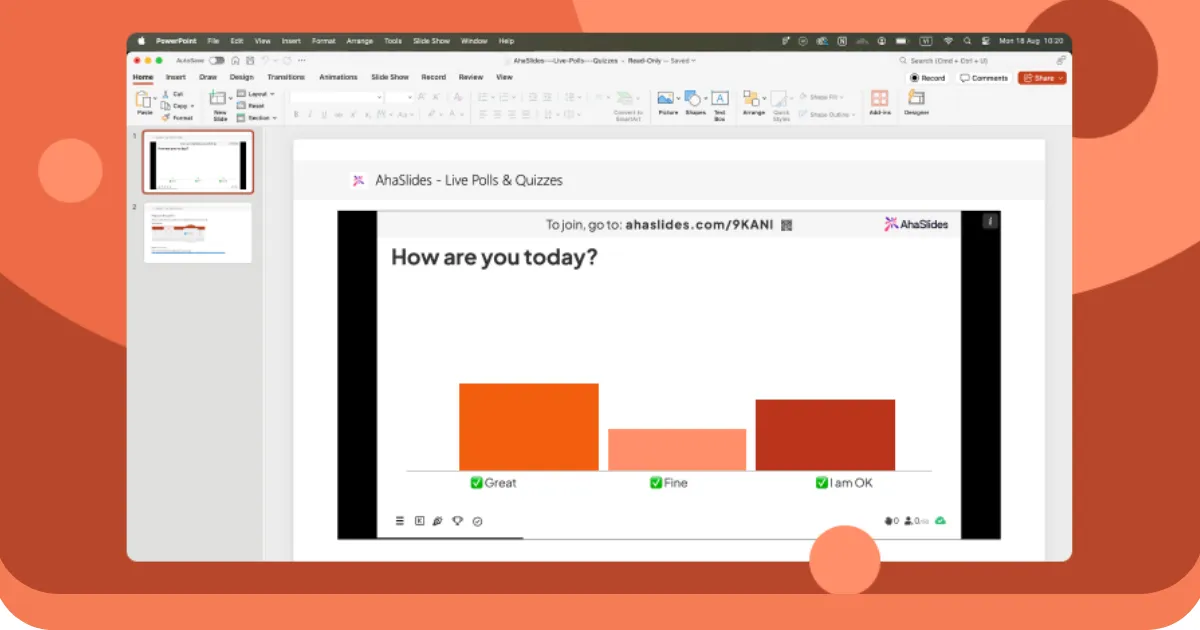
Prezentácia v PowerPointe s interaktívnymi prvkami môže priniesť až 92 % zapojenie publika. Prečo?
Pozri sa:
| Faktory | Tradičné PowerPointové snímky | Interaktívne prezentácie programu PowerPoint |
|---|---|---|
| Ako sa publikum správa | Len hodinky | Pripojí sa a zúčastní sa |
| konferenciér | Rečník hovorí, publikum počúva | Každý zdieľa nápady |
| Vzdelávanie | Môže to byť nuda | Zábava a udržiava záujem |
| Memory Masážne stoly | Ťažšie zapamätateľné | Ľahšie zapamätateľné |
| Kto vedie | Reproduktor hovorí o všetkom | Publikum pomáha formovať reč |
| Zobrazujú sa údaje | Iba základné tabuľky | Živé ankety, hry, slovné oblaky |
| Konečný výsledok | Získa bod naprieč | Vytvára trvalú pamäť |
Skutočná otázka je, ako urobíte svoju prezentáciu v PowerPointe interaktívnou?
Nestrácajte viac času a skočte priamo do nášho dokonalého sprievodcu, ako si vyrobiť interaktívny PowerPoint predstavenie s dvoma jednoduchými a jedinečnými metódami a bezplatnými šablónami na vytvorenie majstrovského diela.
Metóda 1: Interaktivita zapojenia publika pomocou doplnkov
Interaktivita založená na navigácii zlepšuje tok obsahu, ale nerieši základný problém živých prezentácií: publikum pasívne sedí, zatiaľ čo jedna osoba k nemu hovorí. Tvorba skutočné zapojenie počas živých stretnutí vyžaduje rôzne nástroje.
Prečo je účasť publika dôležitejšia ako prepracovaná navigácia
Rozdiel medzi interaktívnou navigáciou a interaktívnou účasťou je rozdielom medzi dokumentárnym filmom Netflixu a workshopom. Obe môžu byť cenné, ale slúžia úplne iným účelom.
S interaktívnou navigáciou: Stále prezentujete ľuďom. Sledujú, zatiaľ čo vy za nich prezeráte obsah. Pre vás ako prezentujúceho je to interaktívne, ale oni zostávajú pasívnymi pozorovateľmi.
S interaktívnou účasťou: Spolupracujete s ľuďmi. Aktívne prispievajú, ich vstupy sa zobrazujú na obrazovke a prezentácia sa stáva skôr konverzáciou ako prednáškou.
Výskum opakovane ukazuje, že aktívna účasť prináša dramaticky lepšie výsledky ako pasívne sledovanie. Keď diváci odpovedajú na otázky, zdieľajú názory alebo posielajú otázky zo svojich telefónov, deje sa súčasne niekoľko vecí:
- Kognitívna angažovanosť sa zvyšuje. Premýšľanie o možnostiach prieskumu alebo formulovanie odpovedí aktivuje hlbšie spracovanie informácií ako pasívne prijímanie.
- Psychologické investície rastú. Keď sa ľudia zapájajú, viac im záleží na výsledkoch a naďalej venujú pozornosť tomu, aby videli výsledky a počuli názory ostatných.
- Sociálny dôkaz sa stáva viditeľným. Keď výsledky prieskumu ukážu, že 85 % vášho publika s niečím súhlasí, tento konsenzus sa sám o sebe stáva dátami. Keď sa vo vašich otázkach a odpovediach objaví 12 otázok, aktivita sa stane nákazlivou a prispieva viac ľudí.
- Hanbliví účastníci nachádzajú hlas. Introverti a juniorskí členovia tímu, ktorí by nikdy nezdvihli ruku alebo sa neozývali, budú posielať otázky anonymne alebo hlasovať v anketách z bezpečia svojich telefónov.
Táto transformácia si vyžaduje nástroje nad rámec natívnych funkcií PowerPointu, pretože potrebujete skutočné mechanizmy zhromažďovania a zobrazovania odpovedí. Tento problém rieši niekoľko doplnkov.
Používanie doplnku AhaSlides pre PowerPoint na účasť publika naživo
AhaSlides ponúka bezplatnú Doplnok PowerPoint ktorý funguje na Macu aj Windowse a poskytuje 19 rôznych interaktívnych typov snímok vrátane kvízov, ankiet, slovných oblakov, otázok a odpovedí a prieskumov.
Krok 1: Vytvorte si účet AhaSlides
- Zaregistrovať sa pre bezplatný účet AhaSlides
- Vytvorte si interaktívne aktivity (ankety, kvízy, slovné oblaky) vopred
- Prispôsobte si otázky, odpovede a dizajnové prvky
Krok 2: Nainštalujte doplnok AhaSlides do programu PowerPoint
- Otvorte PowerPoint
- Prejdite na kartu „Vložiť“
- Kliknite na položku „Získať doplnky“ (alebo „Doplnky balíka Office“ v systéme Mac)
- Hľadať „AhaSlides“
- Kliknite na tlačidlo „Pridať“ a nainštalujte doplnok
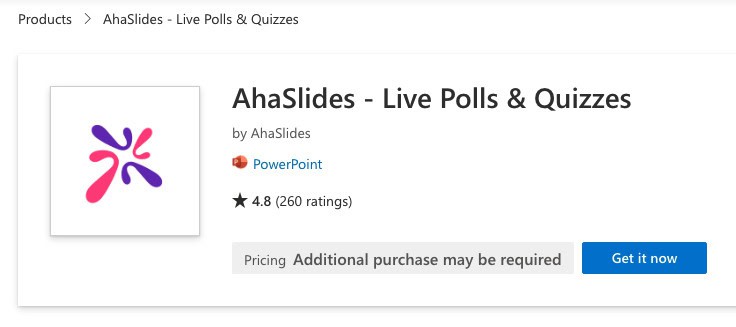
Krok 3: Vložte interaktívne snímky do prezentácie
- Vytvorenie novej snímky v prezentácii v PowerPointe
- Prejdite na „Vložiť“ → „Moje doplnky“
- Vyberte AhaSlides z nainštalovaných doplnkov
- Prihláste sa do svojho účtu AhaSlides
- Vyberte interaktívnu snímku, ktorú chcete pridať
- Kliknite na tlačidlo „Pridať snímku“ a vložte ju do prezentácie.
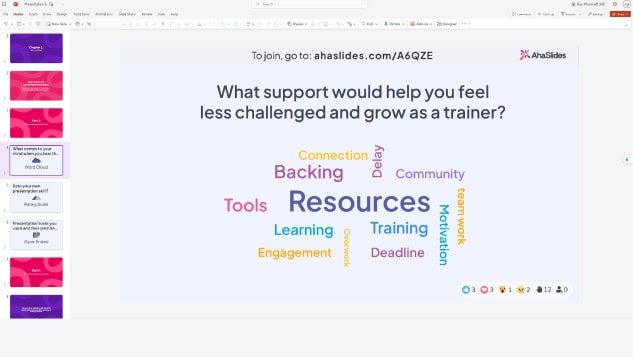
Počas vašej prezentácie sa na interaktívnych snímkach zobrazí QR kód a odkaz na pripojenie. Účastníci naskenujú QR kód alebo navštívia odkaz na svojich smartfónoch, aby sa pripojili a zapojili sa v reálnom čase.
Stále zmätený? Pozrite si tento podrobný návod v našom Znalostná báza.
Tip experta č. 1: Použite prelomovač ľadov
Začiatok akejkoľvek prezentácie rýchlou interaktívnou aktivitou pomáha prelomiť ľady a nastavuje pozitívny a pútavý tón. Aktivity, ktoré prelomia ľady, fungujú obzvlášť dobre na:
- Workshopy, kde chcete zmerať náladu alebo energiu publika
- Virtuálne stretnutia so vzdialenými účastníkmi
- Tréningové stretnutia s novými skupinami
- Firemné akcie, kde sa ľudia nemusia navzájom poznať
Príklady nápadov na prelomenie ľadov:
- „Ako sa dnes všetci cítite?“ (anketa nálady)
- „Akým jedným slovom by ste opísali svoju súčasnú úroveň energie?“ (slovný oblak)
- „Ohodnoťte svoju znalosť dnešnej témy“ (otázka so stupnicou)
- „Odkiaľ sa pripájate?“ (otvorená otázka pre virtuálne podujatia)
Tieto jednoduché aktivity okamžite zaujmú vaše publikum a poskytnú vám cenné poznatky o ich duševnom stave, ktoré môžete využiť na úpravu svojho prezentačného prístupu.
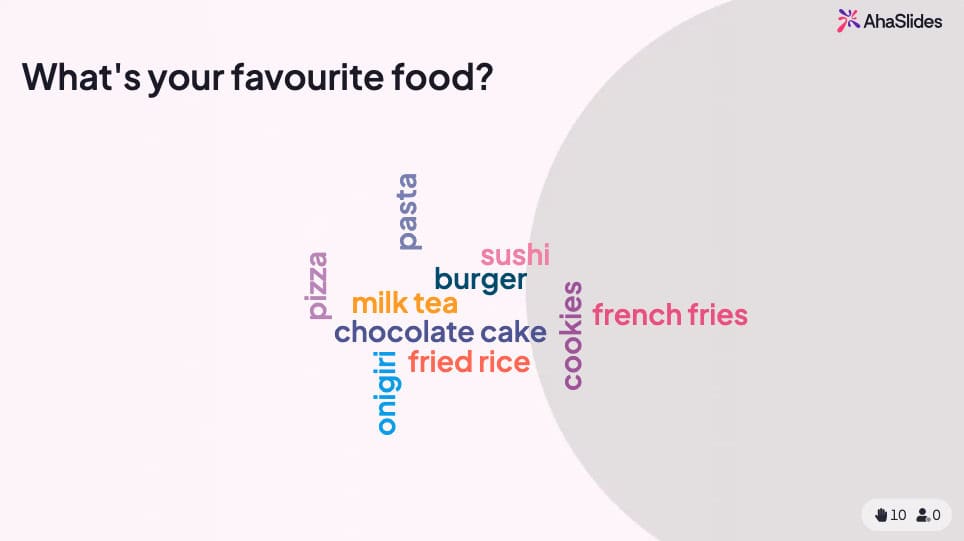
💡 Chcete viac hier na ľadoborec? Nájdete a celá kopa bezplatných práve tu!
Tip experta č. 2: Ukončite mini kvízom
Kvízy neslúžia len na hodnotenie – sú to účinné nástroje na zapojenie, ktoré transformujú pasívne počúvanie na aktívne učenie. Strategické umiestnenie kvízov pomáha:
- Zdôraznite kľúčové body - Účastníci si po testovaní lepšie zapamätajú informácie
- Identifikujte medzery vo vedomostiach - Výsledky v reálnom čase ukazujú, čo je potrebné objasniť
- Udržujte si pozornosť - Vedomie, že sa blíži kvíz, udrží publikum sústredené
- Vytvorte nezabudnuteľné chvíle - Súťažné prvky dodávajú vzrušenie
Najlepšie postupy pre umiestnenie kvízov:
- Pridajte kvízy s 5 až 10 otázkami na koniec hlavných tém
- Používajte kvízy ako prechody medzi sekciami
- Zahrňte záverečný kvíz, ktorý pokrýva všetky hlavné body
- Zobrazte rebríčky a vytvorte priateľskú súťaž
- Poskytnite okamžitú spätnú väzbu o správnych odpovediach
Na AhaSlides fungujú kvízy bezproblémovo v PowerPointe. Účastníci súťažia o body rýchlym a správnym zodpovedaním na svojich telefónoch, pričom výsledky sa zobrazujú naživo na vašej snímke.
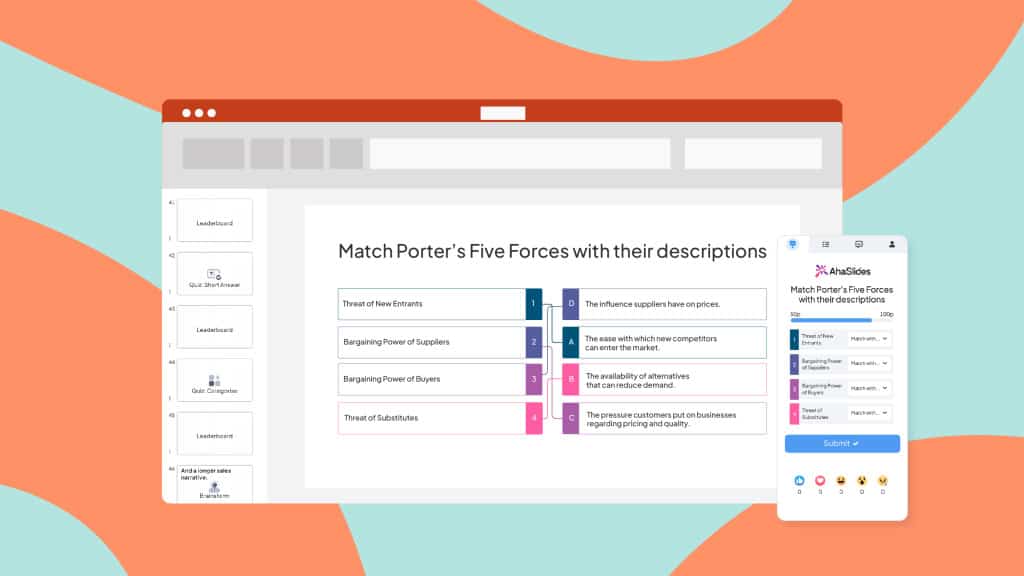
On AhaSlides, kvízy fungujú rovnako ako iné interaktívne snímky. Položte otázku a vaše publikum bude súťažiť o body tým, že bude najrýchlejší odpovedajúci na svojich telefónoch.
Tip od experta č. 3: Kombinujte rôzne snímky
Rozmanitosť zabraňuje únave z prezentácie a udržiava pozornosť počas dlhších prezentácií. Namiesto opakovaného používania toho istého interaktívneho prvku kombinujte rôzne typy:
Dostupné typy interaktívnych snímok:
- Ankety - Rýchle zhromažďovanie názorov s možnosťou výberu z viacerých možností
- Kvízy - Testovanie vedomostí s bodovaním a rebríčkami
- Slovo mraky - Vizuálne znázornenie reakcií publika
- Otázky s otvoreným koncom - Odpovede vo voľnom texte
- Otázky týkajúce sa mierky - Zber hodnotení a spätnej väzby
- Snímky na brainstorming - Spoločné generovanie nápadov
- Relácie Q&A - Anonymné zadávanie otázok
- Otočné kolesá - Náhodný výber a gamifikácia
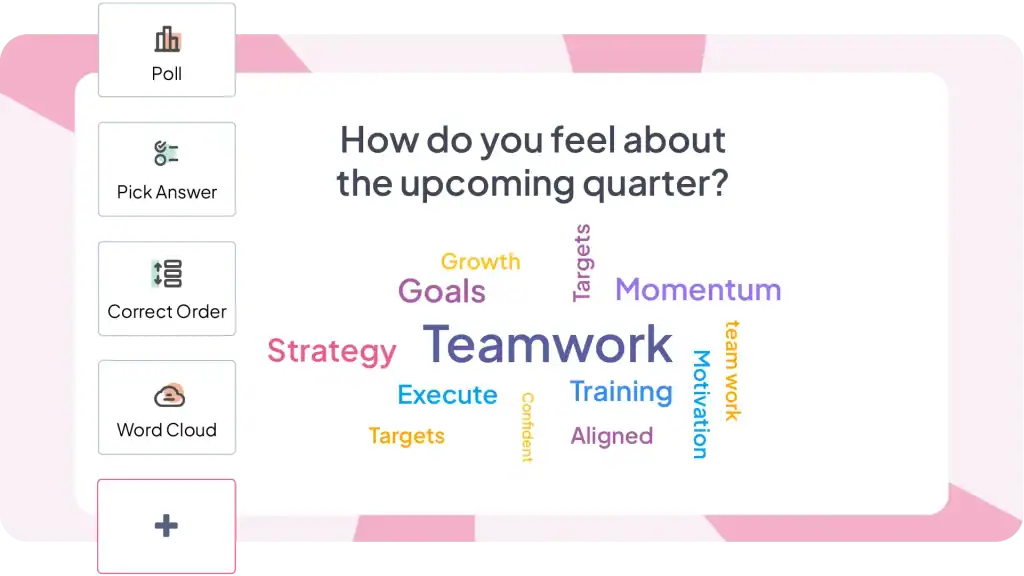
Odporúčaná zmes pre 30-minútovú prezentáciu:
- 1-2 aktivity na prelomenie ľadov na začiatku
- 2 – 3 ankety pre rýchle zapojenie
- 1-2 kvízy na overenie vedomostí
- 1 slovný oblak pre kreatívne odpovede
- 1 Otázky a odpovede na otázky
- 1 záverečný kvíz alebo anketa na záver
Táto rozmanitosť udržiava vašu prezentáciu dynamickú a zabezpečuje, že sa zohľadnia rôzne štýly učenia a preferencie účasti.
Ďalšie možnosti doplnkov, ktoré stoja za zváženie
AhaSlides nie je jedinou možnosťou. Niekoľko nástrojov slúži na podobné účely s rôznym zameraním.
ClassPoint Hlboko sa integruje s PowerPointom a obsahuje nástroje na anotácie, rýchle ankety a funkcie gamifikácie. Obzvlášť obľúbený vo vzdelávacích kontextoch. Silnejší v nástrojoch pre prezentácie, menej rozvinutý pre plánovanie pred prezentáciou.
liemeter ponúka krásne vizualizácie a slovné oblaky. Prémiové ceny odrážajú prepracovaný dizajn. Vhodnejšie pre príležitostné veľké podujatia ako pre pravidelné stretnutia kvôli nákladom.
Anketa všade existuje od roku 2008 s vyspelou integráciou PowerPointu. Podporuje SMS odpovede popri webe, čo je užitočné pre publikum, ktoré nemá skúsenosti s QR kódmi alebo prístupom na web. Pri častom používaní sa môžu ceny za odpoveď značne zvýšiť.
slide Zameriava sa na otázky a odpovede a základné hlasovanie. Obzvlášť vhodné pre veľké konferencie a mestské sály, kde je dôležitá moderácia. Menej komplexné typy interakcie v porovnaní s platformami typu „všetko v jednom“.
Úprimná pravda: všetky tieto nástroje riešia rovnaký základný problém (umožnenie živej účasti publika na prezentáciách v PowerPointe) s mierne odlišnými sadami funkcií a cenami. Vyberte si na základe vašich špecifických potrieb – vzdelávanie verzus korporátne, frekvencie stretnutí, rozpočtových obmedzení a typov interakcie, ktoré najviac potrebujete.
Kedy zavolať profesionálov
Vytváranie sofistikovaných interaktívnych prezentácií si vyžaduje značný čas a odborné znalosti. Ak čelíte prísnym termínom, chýba vám sebavedomie v oblasti dizajnu alebo potrebujete prezentácie, ktoré dokonale odrážajú vašu značku, zvážte spoluprácu so špecialistami.
predstavovaný je britská agentúra pre dizajn PowerPointu, ktorá kombinuje profesionálny dizajn s princípmi kognitívnej vedy. Vytvára interaktívne prezentácie s vlastnou navigáciou, pokročilými animáciami a sofistikovanými funkciami klikania – zaoberá sa všetkým od reštrukturalizácie obsahu až po technickú implementáciu.
Metóda 2: Interaktivita založená na navigácii s použitím natívnych funkcií programu PowerPoint
PowerPoint obsahuje výkonné interaktívne funkcie, ktoré väčšina ľudí nikdy neobjaví. Tieto nástroje vám umožňujú vytvárať prezentácie, kde diváci ovládajú svoj zážitok, vyberajú si, ktorý obsah a v akom poradí chcú preskúmať.
1. Hypertextové odkazy
Hypertextové odkazy sú najjednoduchším spôsobom na vytváranie interaktívnych prezentácií v PowerPointe. Umožňujú vám prepojiť ľubovoľný objekt na snímke s ľubovoľnou inou snímkou v balíčku a vytvoriť tak prepojenia medzi obsahom.
Ako pridať hypertextové odkazy:
- Vyberte objekt, na ktorý chcete kliknúť (text, tvar, obrázok, ikona)
- Kliknite pravým tlačidlom myši a vyberte možnosť „Odkaz“ alebo stlačte Ctrl+K
- V dialógovom okne Vložiť hypertextový odkaz vyberte možnosť „Umiestniť do tohto dokumentu“.
- Vyberte cieľovú snímku zo zoznamu
- kliknite na tlačidlo OK
Na objekt je teraz možné kliknúť počas prezentácií. Pri prezentovaní sa kliknutím naň presuniete priamo na vami zvolené miesto.
2. Animácia
Animácie dodajú vašim snímkam pohyb a vizuálny záujem. Namiesto toho, aby sa text a obrázky jednoducho zobrazovali, môžu „priletieť“, „zmiznúť“ alebo dokonca sledovať určitú cestu. To upúta pozornosť vášho publika a udrží ho v zaujatí. Tu je niekoľko typov animácií na preskúmanie:
- Vstupné animácie: Ovládajte spôsob zobrazenia prvkov na snímke. Možnosti zahŕňajú "Fly In" (z určitého smeru), "Fade In", "Grow/Shrink" alebo dokonca dramatický "Bounce".
- Ukončiť animácie: Ovládajte, ako prvky miznú zo snímky. Zvážte „Fly Out“, „Fade Out“ alebo hravý „Pop“.
- Zdôrazňujúce animácie: Zvýraznite konkrétne body pomocou animácií ako „Pulz“, „Zväčšiť/zmenšiť“ alebo „Zmena farby“.
- Cesty pohybu: Animujte prvky tak, aby sledovali konkrétnu cestu cez snímku. To sa dá použiť na vizuálne rozprávanie príbehov alebo zdôraznenie spojení medzi prvkami.
3. Triggers
Spúšťače posunú vaše animácie o krok ďalej a urobia vašu prezentáciu interaktívnou. Umožňujú vám ovládať, kedy sa uskutoční animácia na základe konkrétnych akcií používateľa. Tu sú niektoré bežné spúšťače, ktoré môžete použiť:
- Po kliknutí: Animácia sa spustí, keď používateľ klikne na konkrétny prvok (napr. kliknutie na obrázok spustí prehrávanie videa).
- Pri umiestnení kurzora myši: Animácia sa prehrá, keď používateľ umiestni kurzor myši na prvok. (napr. umiestnením kurzora myši na číslo zobrazíte skryté vysvetlenie).
- Po predchádzajúcej snímke: Po dokončení zobrazenia predchádzajúcej snímky sa automaticky spustí animácia.
Hľadáte ďalšie interaktívne nápady pre PowerPoint?
Väčšina návodov zjednodušuje interaktívny PowerPoint na „tu je návod, ako pridať animácie a hypertextové odkazy“. To je ako zredukovať varenie na „tu je návod, ako používať nôž“. Technicky presné, ale úplne minú pointu.
Interaktívny PowerPoint sa dodáva v dvoch zásadne odlišných variantoch, z ktorých každý rieši odlišné problémy:
Interaktivita založená na navigácii (Natívne funkcie PowerPointu) vytvára preskúmateľný obsah s vlastným tempom, kde si jednotlivci riadia svoju cestu. Využite ho pri vytváraní školiacimi modulmi, predajnými prezentáciami s rôznym publikom alebo kioskovými displejmi.
Interaktívna účasť publika (vyžaduje doplnky) transformuje živé prezentácie na obojsmerné konverzácie, v ktorých publikum aktívne prispieva. Vytvorte si ho pri prezentovaní tímom, vedení školení alebo organizovaní podujatí, kde je dôležitá angažovanosť.
Pre interaktívnu navigáciu otvorte PowerPoint a začnite experimentovať s hypertextovými odkazmi a spúšťačmi ešte dnes.
Pre účasť publika, vyskúšajte AhaSlides zadarmo - nevyžaduje sa kreditná karta, funguje priamo v PowerPointe, v bezplatnom programe je zahrnutých 50 účastníkov.
Často kladené otázky
Ako môžete urobiť snímky zaujímavejšie?
Začnite napísaním svojich nápadov, potom buďte kreatívni s dizajnom snímky, udržujte dizajn konzistentný; urobte svoju prezentáciu interaktívnou, potom pridajte animáciu a prechody a potom zarovnajte všetky objekty a texty na všetkých snímkach.
Aké sú najlepšie interaktívne aktivity na prezentácii?
V prezentácii by sa malo využiť množstvo interaktívnych aktivít vrátane živých ankiet, kvízov, slovného oblaku, násteniek s kreatívnymi nápadmi alebo sekcie otázok a odpovedí.